 Gracious
23c068b269
Gracious
23c068b269
Download table for release builds, supported-printer table, fork notes,
credits for bundled fonts/libraries. DEFAULT_ADDR is now empty and the
screenshots use a placeholder MAC.
Niimbot Label Designer — niimprint
Design and print labels on Niimbot thermal label printers (B1, B18, B21, D11, D101, D110) over Bluetooth or USB. Includes a desktop label designer with drag-and-drop text and ~1,900 emoji, and the niimprint command-line client / Python library it is built on.

Download
Standalone builds, no Python needed — grab the latest from the releases page:
| File | Platform |
|---|---|
NiimbotLabel.exe |
Windows 10/11 x64 |
NiimbotLabel |
Linux x64 (needs a system Tcl/Tk) |
Pair the printer over Bluetooth in your OS first, then enter its MAC address in the app's Printer box (see Bluetooth connection for which address to use). For USB, leave the address blank to auto-detect, or enter the port (/dev/ttyACM0, COM3).
Supported printers
| Model | Max print width | Density | Notes |
|---|---|---|---|
| B1, B21 | 384 px (50 mm tape) | 1–5 | |
| B18 | 384 px | 1–3 | |
| D11, D110 | 96 px (12 mm tape) | 1–3 | |
| D101 | 192 px (25 mm tape) | 1–3 | tested on 12 mm tape, firmware 20.51 |
Printers print at 8 px/mm (~203 dpi). Add a model in niimprint/models.py if yours is missing.
About this fork
Fork of AndBondStyle/niimprint (itself a fork of kjy00302/niimprint). Changes here:
- Label designer app (
label_app.py): free placement, rotation, live 1-bit preview, full emoji set, light/dark themes, standalone builds - Printer model table (
niimprint/models.py) with per-model width / density / protocol quirks; adds D101 - Ported upstream PRs #28 and #12: D-series
ALLOW_PRINT_CLEAR/SET_QUANTITY(fixes labels taller than ~210 px), print-status polling instead of a fixed sleep PrinterErrorraised on timeouts / rejected commands instead of returningNone
Running from source
git clone https://git.gracious.one/gracious_admin/NIIMBOT-D101.git
cd NIIMBOT-D101
python -m venv --system-site-packages .venv   # system Python gives you tkinter
.venv/bin/pip install -r requirements.txt
Or with poetry: poetry install. Python 3.10+; tested on 3.13.
Then python label_app.py for the designer, or python -m niimprint --help for the CLI.
The label designer needs two fonts, both standard on most distros:
- DejaVu Sans —
/usr/share/fonts/TTF/DejaVuSans*.ttf(Arch) or/usr/share/fonts/truetype/dejavu/(Debian) - Noto Color Emoji —
/usr/share/fonts/noto/NotoColorEmoji.ttf
Edit TEXT_FONTS / EMOJI_FONT at the top of label_app.py if yours live elsewhere.
Command-line client
$ python -m niimprint --help

Usage: niimprint [OPTIONS]

Options:
  -m, --model [b1|b18|b21|d11|d101|d110]  Niimbot printer model  [default: b21]
  -c, --conn [usb|bluetooth]   Connection type  [default: usb]
  -a, --addr TEXT              Bluetooth MAC address OR serial device path
  -d, --density INTEGER RANGE  Print density  [default: 5; 1<=x<=5]
  -r, --rotate [0|90|180|270]  Image rotation (clockwise)  [default: 0]
  -i, --image PATH             Image path  [required]
  -v, --verbose                Enable verbose logging
  --help                       Show this message and exit.
Image orientation
Generally, the image comes out of the printer with the same orientation you see it on your screen. You can have your input image rotated as you like, but adjust its orientation by passing -r <...> flag. See the image below for clarification.
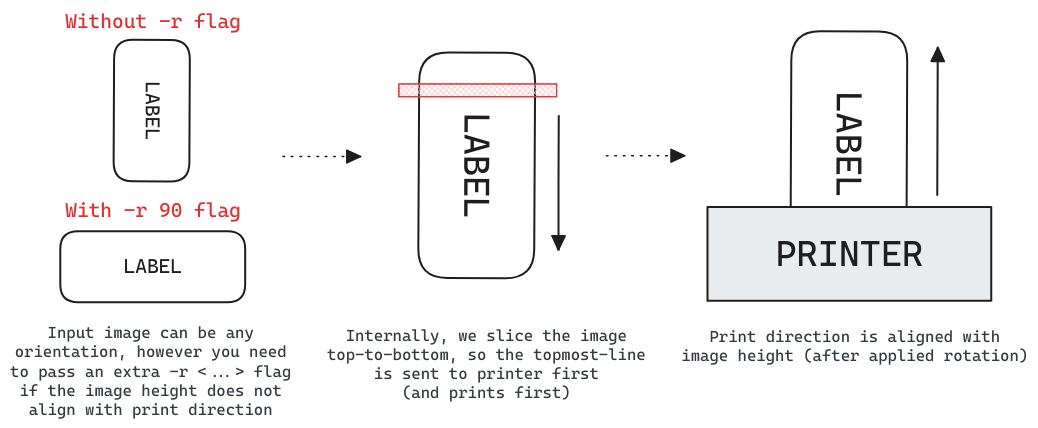
Image resolution
As far as we've tested, Niimbot printers have 8 pixels per mm (~203 dpi) resolution. The CLI prints the image you provided as-is, without any checks of the actual label size, so be careful. However the script will check if the image width is too big for selected printer. The maximum width in pixels is usually slightly less than specified maximum width in mm:
- B21, B1, B18: max 384 pixels (almost equal to 50 mm * 8 px/mm = 400)
- D11, D110: max 96 pixels (almost equal to 15 mm * 8 px/mm = 120)
- D101: max 192 pixels (25 mm tape); tested on 12 mm tape
USB connection
For USB connection, you can omit the --addr argument and let the script auto-detect the serial port. However, it will fail if there're multiple available ports. On linux, serial ports can be found at /dev/ttyUSB*, /dev/ttyACM* or /dev/serial/*. On windows, they will be named like COM1, COM2 etc. Check the device manager to choose the correct one.
Bluetooth connection
It seems like B21 and B1 (and maybe other models?) have two bluetooth adresses. They have the same last 3 bytes, but the first 3 are rotated (for example AA:BB:CC:DD:EE:FF and CC:AA:BB:DD:EE:FF). Connection works only if you disconnect from one and connect to the other. After connecting via bluetoothctl you may get org.bluez.Error.NotAvailable br-connection-profile-unavailable error, but printing works fine regardless.
To identify which address is the correct one, run bluetoothctl info on the address you want to check. The incorrect one might list UUID: Generic Access Profile and UUID: Generic Attribute Profile, while the correct one will list UUID: Serial Port.
The D101 does the same: it advertises as D101-<serial> on two addresses (e.g. AA:BB:CC:… and BB:CC:AA:…); use the one whose bluetoothctl info lists UUID: Serial Port, then pair and trust it once.
Examples
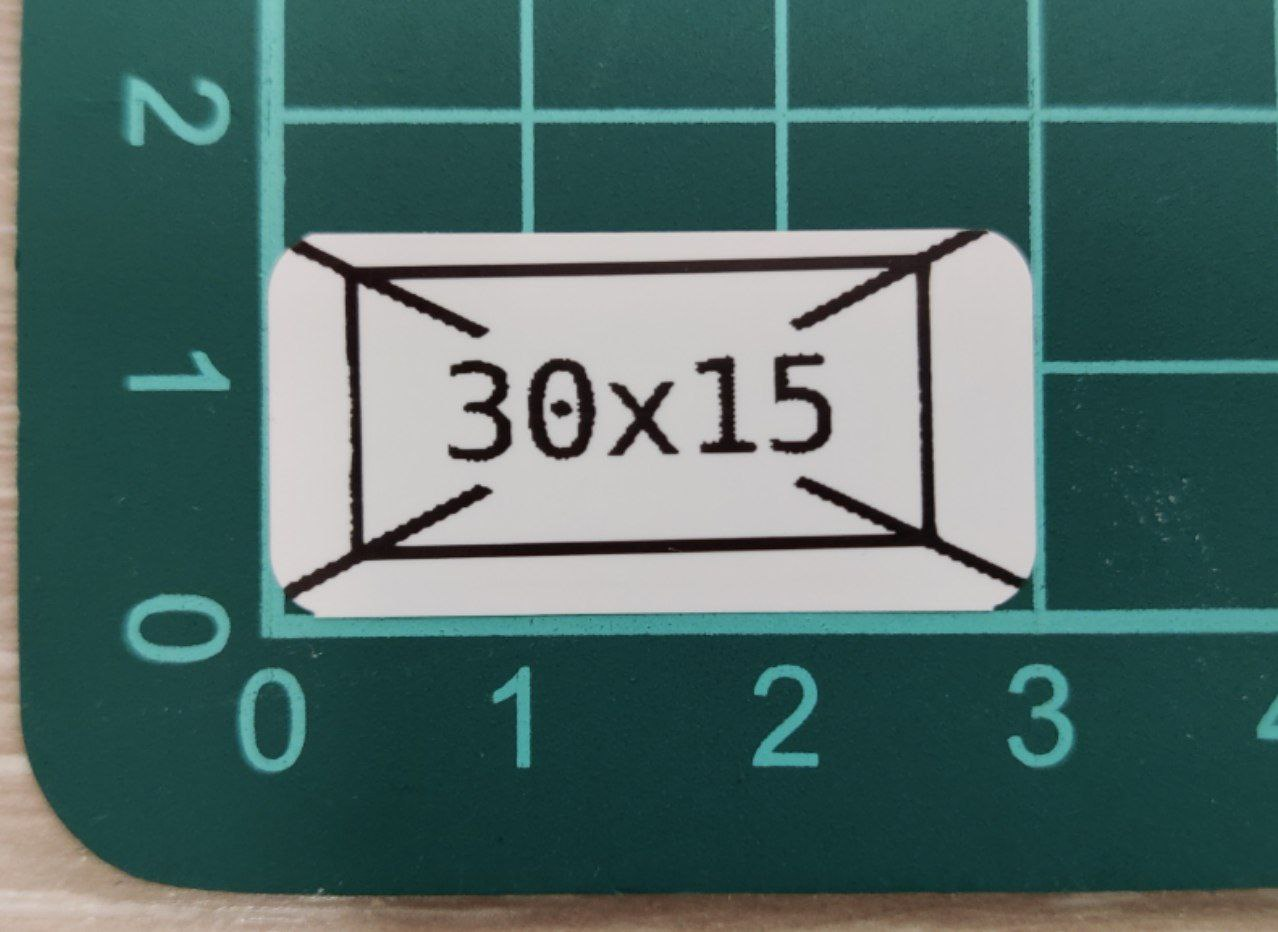
B21, USB connection, 30x15 mm (240x120 px) label
python niimprint -c usb -a /dev/ttyACM0 -r 90 -i examples/B21_30x15mm_240x120px.png
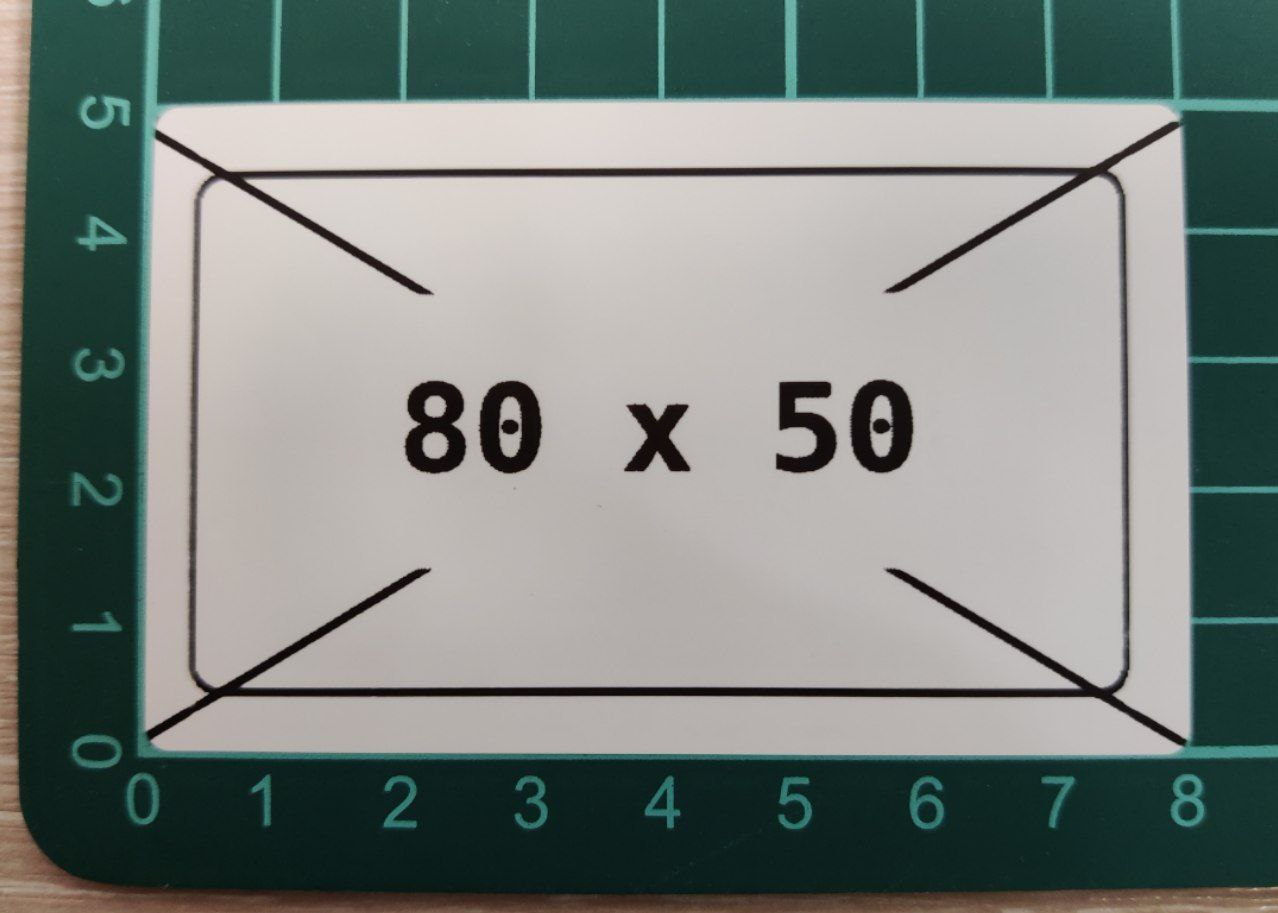
B21, Bluetooth connection, 80x50 mm (640x384 px) label
python niimprint -c bluetooth -a "E2:E1:08:03:09:87" -r 90 -i examples/B21_80x50mm_640x384px.png
Label designer app
.venv/bin/python label_app.py
| Light | Dark |
|---|---|
|
 |
The 40 × 12 mm label above, exactly as sent to the printer (320 × 96 px, 1-bit):

Designing
- Label size — pick a preset (12 × 40, 12 × 30, 12 × 22, 15 × 30 mm) or Custom and type width / length in mm. 8 px per mm.
- + Text adds a text block. Type in the Selected item box; multi-line is fine, and emoji typed inline are rendered too.
- Emoji — click any emoji in the picker to add it as its own item. The tabs are 😀 Smileys, 👍 People, 🐶 Animals, 🍎 Food, 🚗 Travel, ⚽ Activities, 💡 Objects, ❤️ Symbols, 🏁 Flags (~1,900 in total); the Search box filters by name; hovering shows the name.
- Move — drag on the canvas, arrow keys nudge 1 px (Shift = 10 px), or type X / Y. Center H / V snap to the middle.
- Rotate — ⟲ / ⟳ 90° buttons, or any angle in the Angle spinbox (15° steps).
- Size / Bold / Align — per item. Fit sizes the selected item to fill the label.
- Duplicate / Delete (or the Delete key).
- The canvas shows the dithered black-and-white image the printer will actually produce, at 2–4× zoom depending on label size. Emoji are darkened (gamma 3) so pale colours don't dither away on thermal paper.
Printing & files
- Print — connects lazily and prints in the background; Copies repeats the label. Errors show in a dialog.
- Save PNG… exports the 1-bit image; Save… / Open… store the design as JSON; New clears the label.
- Printer model, connection, address, density, theme, and the last design are remembered in
~/.config/niimprint-label/settings.json. - ☾ / ☀ toggles light and dark themes (ttkbootstrap flatly / darkly).
Library use
from PIL import Image
from niimprint import BluetoothTransport, PrinterClient, prepare_print

image = Image.open("label.png")                       # landscape, 8 px/mm
image, density = prepare_print("d101", image, 3, rotate=90)
printer = PrinterClient(BluetoothTransport("AA:BB:CC:DD:EE:FF"))
printer.print_image(image, density=density, model="d101")
prepare_print clamps density to the model's maximum, rotates, and raises ValueError if the image is wider than the print head. print_image raises PrinterError if the printer stops responding or rejects a command.
Standalone executable (Windows / Linux)
A PyInstaller spec (label_app.spec) bundles the app, fonts, emoji data and themes into a single file. Build on the target OS — PyInstaller does not cross-compile.
Windows (PowerShell, with Python 3.10+ from python.org):
.\build-windows.ps1
produces dist\NiimbotLabel.exe (~30 MB, no installation needed). Bluetooth uses the Windows RFCOMM socket API, so pair the printer in Windows Bluetooth settings first, then enter its MAC address in the app. For USB, enter the COMx port or leave the address blank to auto-detect.
assets/win/fribidi.dll is bundled because Pillow's Windows wheel needs it for emoji sequences (flags, skin tones, 🧑💻-style ZWJ emoji); see assets/win/README.md.
Linux:
.venv/bin/pip install pyinstaller
.venv/bin/pyinstaller --noconfirm label_app.spec   # -> dist/NiimbotLabel
Licence
MIT. Originally developed by kjy00302, extended by AndBondStyle; label designer and D101 support added in this fork.
Bundled third-party assets: DejaVu fonts (Bitstream Vera licence), Noto Color Emoji (SIL OFL 1.1), FriBidi (LGPL 2.1, Windows build only) — see assets/. Emoji metadata from emoji-data-python; UI theme by ttkbootstrap.